Microsoft Word provides the ability to merge content with letterhead.
The trick is that letterhead must be stored locally and may only be contained in the Header and Footer of a document (including margins).
Step 1 – Create a New Blank Word Document.
Step 2 – Save the new blank document to a local fileshare as a Document Template (“DOTX”)
- NOTE: When you change the format from DOCX to DOTX, Word automatically changes the file save location. You will have to manually change the save location to your local file share.
Step 3 – Copy your letterhead components into the header and footer of the DOTX.
- Place these components where desired
- You can include page numbering.
- You can include fields such as the “NumPages” field (allows for “Page 1 of X”) where X is the total number of pages.
- Do forget about Page 2. To allow for a different Header and/or Footer on Page 1, with the header or footer open, in the Header & Footer Tabs, you will be given an option to set “Different First Page”. Once Checked, you can make your headers and footers for the first page different from those on the second page.
- Once you have completed your DOTX, save it for the last time.
- We recommend that you do not include an automatically updated Date Field since this will change your document every time the document is opened. What is better is to insert tab => Quick Parts => Document Property and insert the “Publish Date” property. Additionally, you if turn on the Developer Toolbar, you can change the properties of the “Publish Date” property so on your first page, you have the long date, and then if you insert the part on subsequent pages, you can set them to the short date.
Step 4 – Set the shared location of your letterhead as your workgroup template location.
- Go To File => Options => Advanced and in the General section, select “File Locations”.
- Modify the “Workgroup templates” location to your shared file location.
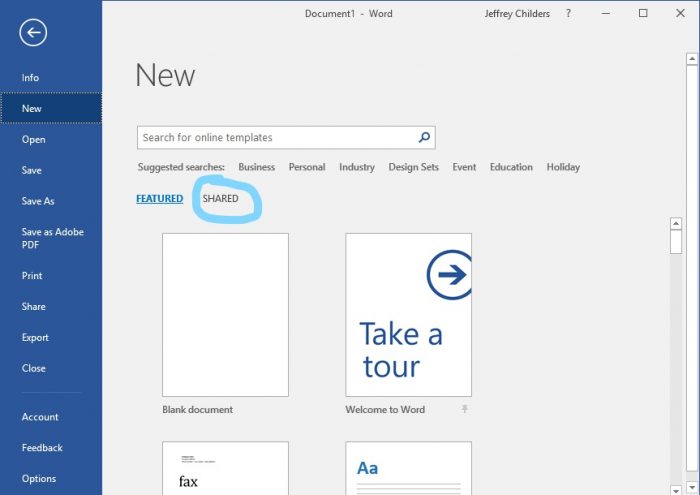
Now, when you need to create a new document, you will be given the option to create from a featured template or a shared template. (See Below) Select shared and you will see your letterhead.